Agent - Stagehand
The Basics
Agent
Copy page
Automate complex workflows with AI powered browser agents
Copy page
What is agent()?
await agent.execute("apply for a job at browserbase")
agent turns high level tasks into fully autonomous browser workflows. You can customize the agent by specifying the LLM provider and model, setting custom instructions for behavior, and configuring max steps. 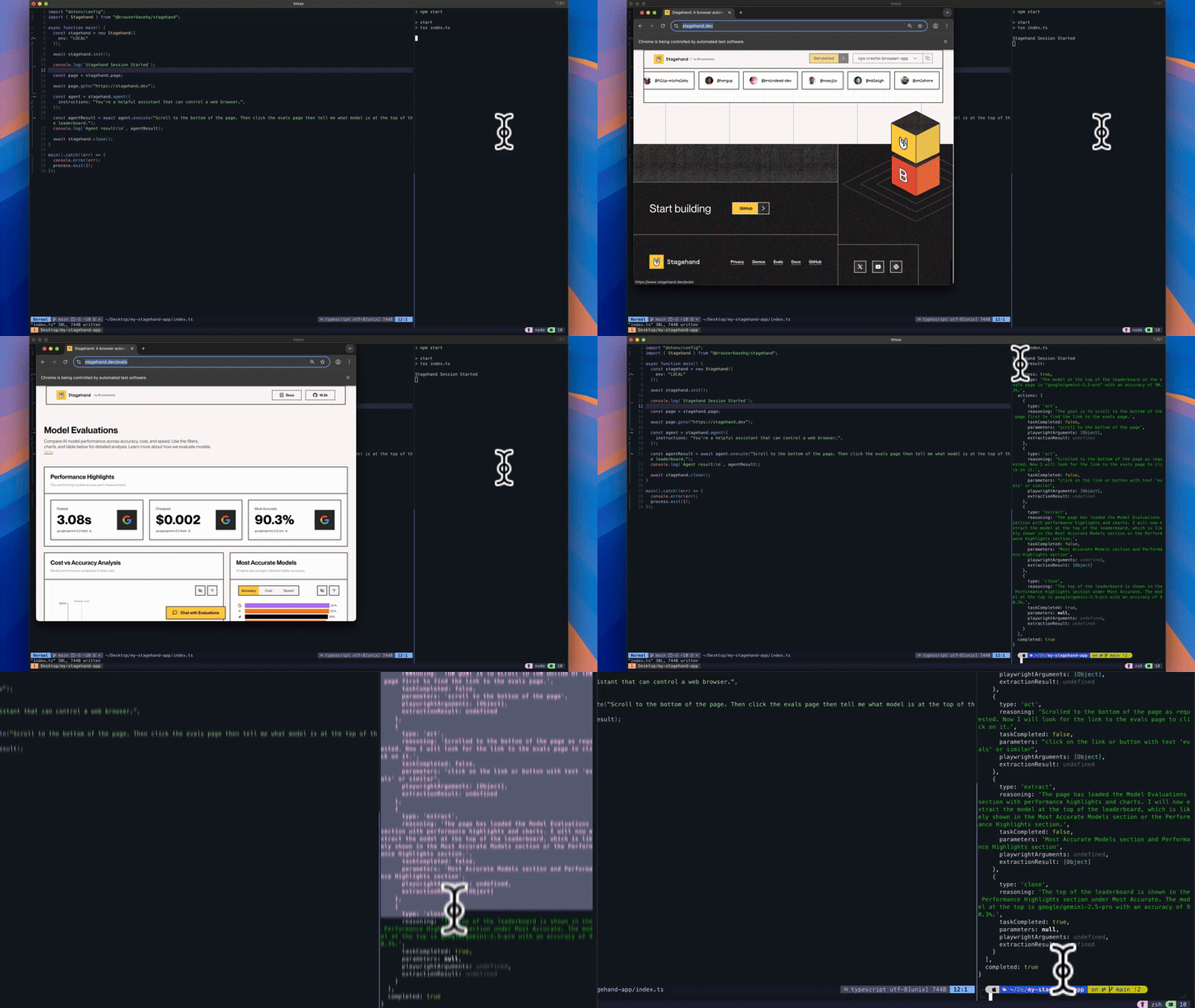
Why use agent()?
Multi-Step Workflows
Execute complex sequences automatically.
Visual Understanding
Sees and understands web interfaces like humans do using computer vision.
Using agent()
There are three ways to create agents in Stagehand:
- Use a Computer Use Agent (CUA mode)
- Use Agent with any LLM (DOM mode)
- Use Agent with vision and DOM (Hybrid mode)
Feature Availability
Some advanced features are only available with certain agent modes:
Feature| CUA| DOM| Hybrid
Basic execution| ✅| ✅| ✅ Custom tools| ✅| ✅| ✅ MCP integrations| ✅| ✅| ✅ System prompt| ✅| ✅| ✅ Variables| ❌| ✅| ✅ Streaming| ❌| ✅| ✅ Callbacks| ❌| ✅| ✅ Abort signal| ❌| ✅| ✅ Message continuation| ❌| ✅| ✅ Exclude tools| ❌| ✅| ✅ Structured output| ❌| ✅| ✅ DOM-based actions| ❌| ✅| ✅ Coordinate-based actions| ✅| ❌| ✅ Visual cursor highlight| ✅| ❌| ✅
Computer Use Agents
You can use specialized computer use models from Google, OpenAI, Anthropic, or Microsoft as shown below, with mode set to "cua". To compare the performance of different computer use models, you can visit our evals page.
Deprecation Notice: The cua: true option is deprecated and will be removed in a future version. Use mode: "cua" instead.
OpenAI
Anthropic
const agent = stagehand.agent({ mode: "cua", model: "google/gemini-3-flash-preview", systemPrompt: "You are a helpful assistant...", });
await agent.execute({ instruction: "Go to Hacker News and find the most controversial post from today, then read the top 3 comments and summarize the debate.", maxSteps: 20, highlightCursor: true })
View or run the example template here
Use Stagehand Agent with Any LLM
Use the agent without specifying a provider to utilize any model or LLM provider:
Non CUA agents are currently only supported in TypeScript
TypeScript
const agent = stagehand.agent(); await agent.execute("apply for a job at Browserbase")
Available Agent Models
Check out the guide on how to use different models with Stagehand Agent.
Hybrid Mode
Both DOM and CUA modes have their strengths and weaknesses. Hybrid mode combines them, giving the agent access to both coordinate-based and DOM-based tools to better account for where each may fall short.
Model Requirements: Hybrid mode requires models that can reliably perform coordinate-based actions from screenshots. The following models are recommended:
- Anthropic: any Claude model (e.g.
anthropic/claude-sonnet-4-6,anthropic/claude-haiku-4-5-20251001) - OpenAI:
openai/gpt-5.4,openai/gpt-5.4-mini - Google:
google/gemini-3-flash-preview,google/gemini-3.1-flash-lite-preview,google/gemini-3.1-pro-preview
Other models may not reliably produce accurate coordinates for clicking and typing.
Hybrid mode requires experimental: true in your Stagehand constructor.
Hybrid Mode with Google
Hybrid Mode with Anthropic
const stagehand = new Stagehand({ env: "BROWSERBASE", experimental: true, // Required for hybrid mode }); await stagehand.init();
const agent = stagehand.agent({ mode: "hybrid", model: "google/gemini-3-flash-preview", });
const page = stagehand.context.pages()[0]; await page.goto("https://example.com");
await agent.execute({ instruction: "Click the sign up button and fill out the registration form", maxSteps: 20, });
Return value of agent()?
When you use agent(), Stagehand will return a Promise<AgentResult> with the following structure:
{
success: true,
message: "The first name and email fields have been filled successfully with 'John' and 'john@example.com'.",
actions: [
{
type: 'ariaTree',
reasoning: undefined,
taskCompleted: true,
pageUrl: 'https://example.com',
timestamp: 1761598722055
},
{
type: 'act',
reasoning: undefined,
taskCompleted: true,
action: 'type "John" into the First Name textbox',
playwrightArguments: {...},
pageUrl: 'https://example.com',
timestamp: 1761598731643
},
{
type: 'close',
reasoning: "The first name and email fields have been filled successfully.",
taskCompleted: true,
taskComplete: true,
pageUrl: 'https://example.com',
timestamp: 1761598732861
}
],
completed: true,
// Only populated when output schema is provided (DOM/Hybrid modes only)
output: {
price: "$199",
airline: "Delta"
},
usage: {
input_tokens: 2040,
output_tokens: 28,
reasoning_tokens: 12,
cached_input_tokens: 0,
inference_time_ms: 14079
}
}
Customizing Agent Tools
Stagehand agents come with built-in tools for browser automation, but you can customize the toolset by adding your own custom tools or excluding built-in ones.
Adding Custom Tools
Custom tools enhance agents with additional capabilities for more granular control and better performance. Unlike MCP integrations, custom tools are defined inline and execute directly within your application.
Custom tools provide a cleaner, more performant alternative to MCP integrations when you need specific functionality.
Defining Custom Tools
Use the tool helper exported from @browserbasehq/stagehand to define custom tools:
Basic Tool
Multiple Tools
Tool with API Integration
import { tool } from "@browserbasehq/stagehand"; import { z } from "zod";
const agent = stagehand.agent({ model: "openai/gpt-5", tools: { getWeather: tool({ description: 'Get the current weather in a location', inputSchema: z.object({ location: z.string().describe('The location to get weather for'), }), execute: async ({ location }) => { // Your custom logic here const weather = await fetchWeatherAPI(location); return { location, temperature: weather.temp, conditions: weather.conditions, }; }, }), }, systemPrompt: 'You are a helpful assistant with access to weather data.', });
await agent.execute("What's the weather in San Francisco and should I bring an umbrella?");
Custom Tools vs MCP Integrations
Custom Tools| MCP Integrations
Defined inline with your code| Connect to external services Direct function execution| Standard protocol Better performance & optimized context| Reusable across applications Type-safe with TypeScript| Access to pre-built integrations Granular control| Network-based communication
Use custom tools when you need specific functionality within your application. Use MCP integrations when connecting to external services or when you need standardized cross-application tools.
Excluding Built-in Tools
Prevent the agent from using specific built-in tools during execution. This is useful when you want to restrict the agent’s capabilities or avoid certain behaviors.
Non-CUA agents only. Requires experimental: true. Not available when cua: true.
Basic Usage
const stagehand = new Stagehand({ env: "LOCAL", experimental: true, // Required for excludeTools }); await stagehand.init();
const agent = stagehand.agent({ model: "anthropic/claude-sonnet-4-5-20250929", });
const page = stagehand.context.pages()[0]; await page.goto("https://example.com");
// Exclude screenshot and extract tools const result = await agent.execute({ instruction: "Navigate through the website and click the submit button", maxSteps: 15, excludeTools: ["screenshot", "extract"], });
Available Tools by Mode
The tools you can exclude depend on the agent mode:
-
DOM Mode
-
Hybrid Mode
Tool| Description
act| Perform semantic actions (click, type, etc.)
fillForm| Fill form fields using DOM selectors
ariaTree| Get accessibility tree of the page
extract| Extract structured data from page
goto| Navigate to a URL
scroll| Scroll using semantic directions (up/down/left/right)
keys| Press keyboard keys
navback| Navigate back in history
screenshot| Take a screenshot
think| Agent reasoning/planning step
wait| Wait for time or condition
search| Web search (requires useSearch: true and BROWSERBASE_API_KEY)
Tool| Description
click| Click at specific coordinates
type| Type text at coordinates
dragAndDrop| Drag from one point to another
clickAndHold| Click and hold at coordinates
fillFormVision| Fill forms using vision/coordinates
act| Perform semantic actions
ariaTree| Get accessibility tree
extract| Extract data from page
goto| Navigate to URL
scroll| Scroll using coordinates
keys| Press keyboard keys
navback| Navigate back
screenshot| Take screenshot
think| Agent reasoning step
wait| Wait for time/condition
search| Web search (requires useSearch: true and BROWSERBASE_API_KEY)
Use Cases
// Prevent the agent from taking screenshots during execution const result = await agent.execute({ instruction: "Fill out the contact form", excludeTools: ["screenshot"], });
// Prevent the agent from extracting data const result = await agent.execute({ instruction: "Click through the signup flow", excludeTools: ["extract"], });
// Disable web search capability const result = await agent.execute({ instruction: "Find information on the current page", excludeTools: ["search"], });
Web Search
Enable the search tool by setting useSearch: true in agent.execute(). This gives the agent the ability to perform web searches using the Browserbase Search API, which is useful when the agent needs to find URLs or gather information before navigating.
Requires a valid Browserbase API key. Set BROWSERBASE_API_KEY in your environment, or pass apiKey in the Stagehand constructor.
const result = await agent.execute({ instruction: "Find the latest pricing for Browserbase", useSearch: true, maxSteps: 20, });
Variables
Use variables to pass sensitive data (like passwords, API keys, or personal information) to the agent without exposing the actual values to the LLM. The agent sees only variable names and descriptions, while the actual values are substituted at runtime.
Non-CUA agents only. Variables are not available with Computer Use Agents.
Basic Usage
const stagehand = new Stagehand({ env: "LOCAL", }); await stagehand.init();
const agent = stagehand.agent({ model: "anthropic/claude-sonnet-4-5-20250929", });
const page = stagehand.context.pages()[0]; await page.goto("https://example.com/login");
const result = await agent.execute({ instruction: "Log into the website using my credentials", maxSteps: 10, variables: { username: { value: "john@example.com", description: "The user's email address for login" }, password: { value: process.env.USER_PASSWORD, description: "The user's password for login" } } });
Variables use the same type as act(). You can pass simple values or rich objects with descriptions:
// Simple values (same format as act) variables: { username: "john@example.com", password: "secret123", }
// Rich values with descriptions (helps the agent understand context) variables: { username: { value: "john@example.com", description: "The login email" }, password: { value: "secret123", description: "The login password" }, }
How Variables Work
- LLM receives descriptions only : The agent sees variable names and descriptions in its system prompt, but never the actual values
- Placeholder syntax : The LLM uses
%variableName%syntax when it needs to use a variable (e.g., “type %password% into the password field”) - Runtime substitution : Actual values are substituted just before the action executes
- Secure logging : Variable values are never logged or returned in tool outputs
Supported Tools
Variables work with the following agent tools:
-
DOM Mode
-
Hybrid Mode
Tool| Usage
act| Use %variableName% in the action description
fillForm| Use %variableName% in field values
Tool| Usage
type| Use %variableName% in the text to type
fillFormVision| Use %variableName% in field values
act| Use %variableName% in the action description
Cache Optimization
Variables are cache-friendly by design:
- Cache keys use only variable names, not values
- Changing variable values (e.g., different passwords) won’t invalidate cached executions
- This enables efficient replay of the same workflow with different credentials
Best Practices
-
Do this
-
Don't do this
// Use variables for sensitive data variables: { apiKey: { value: process.env.API_KEY, description: "API key for authentication" } }
// Don't hardcode sensitive values in instructions instruction: "Log in with password 'secret123'"
Use descriptive names and descriptions for variables. The LLM relies on the description to understand when and how to use each variable.
MCP Integrations
Agents can be enhanced with external tools and services through MCP (Model Context Protocol) integrations. This allows your agent to access external APIs and data sources beyond just browser interactions.
Pass URL
Create Connection
const agent = stagehand.agent({
mode: "cua",
model: "openai/computer-use-preview",
integrations: [
https://mcp.exa.ai/mcp?exaApiKey=${process.env.EXA_API_KEY},
],
systemPrompt: You have access to web search through Exa. Use it to find current information before browsing.
});
await agent.execute("Search for the best headphones of 2025 and go through checkout for the top recommendation");
MCP integrations enable agents to be more powerful by combining browser automation with external APIs, databases, and services. The agent can intelligently decide when to use browser actions versus external tools.
Streaming
Enable streaming mode to receive incremental responses from the agent. This is useful for building real-time UIs that show the agent’s reasoning as it progresses.
Non-CUA agents only. Streaming, callbacks, abort signals, and message continuation are only available when using the standard agent (without mode: "cua"). These features are not supported with Computer Use Agents.
These are experimental features. Set experimental: true in your Stagehand constructor to enable them.
Enabling Streaming Mode
Set stream: true in the agent configuration to enable streaming:
const stagehand = new Stagehand({ env: "LOCAL", experimental: true, // Required for streaming }); await stagehand.init();
const agent = stagehand.agent({ model: "anthropic/claude-sonnet-4-5-20250929", stream: true, // Enable streaming mode });
const streamResult = await agent.execute({ instruction: "Search for headphones on Amazon", maxSteps: 20, });
// Stream the text output incrementally for await (const delta of streamResult.textStream) { process.stdout.write(delta); }
// Get the final result after streaming completes const finalResult = await streamResult.result; console.log("Completed:", finalResult.completed);
Stream Properties
When streaming is enabled, execute() returns an AgentStreamResult with:
Property| Type| Description
textStream| AsyncIterable<string>| Incremental text output from the agent
fullStream| AsyncIterable<StreamPart>| All stream events including tool calls and messages
result| Promise<AgentResult>| Final result after streaming completes
// Stream everything (tool calls, messages, etc.) for await (const event of streamResult.fullStream) { console.log(event); }
Callbacks
Callbacks let you hook into the agent’s execution lifecycle to monitor progress, log events, or modify behavior.
Non-CUA agents only. Callbacks require experimental: true and are not available with Computer Use Agents.
Available Callbacks
-
Non-Streaming
-
Streaming
When stream: false (default), these callbacks are available:
Callback| Description
prepareStep| Called before each LLM step to modify settings
onStepFinish| Called when each step completes
const agent = stagehand.agent({ model: "anthropic/claude-sonnet-4-5-20250929", });
await agent.execute({
instruction: "Fill out the contact form",
maxSteps: 10,
callbacks: {
prepareStep: async (stepContext) => {
console.log(Starting step ${stepContext.stepNumber});
return stepContext; // Return modified or original context
},
onStepFinish: async (event) => {
console.log(Step finished: ${event.finishReason});
if (event.toolCalls) {
for (const tc of event.toolCalls) {
console.log(Tool called: ${tc.toolName});
}
}
},
},
});
When stream: true, additional callbacks are available:
Callback| Description
prepareStep| Called before each LLM step to modify settings
onStepFinish| Called when each step completes
onChunk| Called for each stream chunk
onFinish| Called when streaming completes
onError| Called when an error occurs
onAbort| Called when the stream is aborted
const agent = stagehand.agent({ model: "anthropic/claude-sonnet-4-5-20250929", stream: true, });
const streamResult = await agent.execute({
instruction: "Search for products",
maxSteps: 15,
callbacks: {
onChunk: async (chunk) => {
// Called for each incremental chunk
console.log("Chunk received:", chunk);
},
onStepFinish: async (event) => {
console.log(Step completed: ${event.finishReason});
},
onFinish: (event) => {
console.log("Stream finished!");
console.log("Total steps:", event.steps.length);
},
onError: ({ error }) => {
console.error("Stream error:", error);
},
onAbort: (event) => {
console.log("Stream aborted after", event.steps.length, "steps");
},
},
});
// Don't forget to consume the stream for await (const delta of streamResult.textStream) { process.stdout.write(delta); }
await streamResult.result;
Streaming-only callbacks (onChunk, onFinish, onError, onAbort) will throw an error if used without stream: true. If you need these callbacks, enable streaming in your agent configuration.
Abort Signal
Cancel agent execution at any time using an AbortSignal. This is useful for implementing timeouts or allowing users to stop long-running tasks.
Non-CUA agents only. Abort signals require experimental: true and are not available with Computer Use Agents.
Basic Usage
const stagehand = new Stagehand({ env: "LOCAL", experimental: true, // Required for abort signal }); await stagehand.init();
const agent = stagehand.agent({ model: "anthropic/claude-sonnet-4-5-20250929", });
const controller = new AbortController();
// Set a 30 second timeout setTimeout(() => controller.abort(), 30000);
try { const result = await agent.execute({ instruction: "Complete a complex multi-step task", maxSteps: 50, signal: controller.signal, }); } catch (error) { if (error.name === "AgentAbortError") { console.log("Task was cancelled"); } }
Abort with Streaming
Abort signals also work with streaming mode:
const agent = stagehand.agent({ model: "anthropic/claude-sonnet-4-5-20250929", stream: true, });
const controller = new AbortController();
const streamResult = await agent.execute({
instruction: "Describe every element on the page",
maxSteps: 50,
signal: controller.signal,
callbacks: {
onAbort: (event) => {
console.log(Aborted after ${event.steps.length} steps);
},
},
});
// Abort after receiving 10 chunks let chunkCount = 0; for await (const delta of streamResult.textStream) { process.stdout.write(delta); chunkCount++; if (chunkCount >= 10) { controller.abort(); break; } }
// The result promise will reject with AgentAbortError try { await streamResult.result; } catch (error) { console.log("Stream was aborted:", error.message); }
Custom Abort Reasons
You can pass a reason when aborting:
controller.abort("User cancelled the operation");
// The error message will include your reason // Error: "User cancelled the operation"
Message Continuation
Continue a conversation across multiple agent executions by passing the messages from a previous result. This is useful for multi-turn interactions or breaking complex tasks into steps while maintaining context.
Non-CUA agents only. Message continuation requires experimental: true and is not available with Computer Use Agents.
Basic Continuation
const stagehand = new Stagehand({ env: "LOCAL", experimental: true, // Required for message continuation }); await stagehand.init();
const agent = stagehand.agent({ model: "anthropic/claude-sonnet-4-5-20250929", });
const page = stagehand.context.pages()[0]; await page.goto("https://example.com/products");
// First execution: search for products const firstResult = await agent.execute({ instruction: "Search for wireless headphones and note the top 3 results", maxSteps: 10, });
console.log("First task:", firstResult.message);
// Continue with the same context: ask follow-up const secondResult = await agent.execute({ instruction: "Now filter by price under $100 and tell me which of those 3 are still available", maxSteps: 10, messages: firstResult.messages, // Pass previous conversation });
console.log("Follow-up:", secondResult.message);
// Continue further: take action based on conversation history const thirdResult = await agent.execute({ instruction: "Add the cheapest one to the cart", maxSteps: 10, messages: secondResult.messages, // Chain the conversation });
console.log("Final action:", thirdResult.message);
Structured Output
Define a Zod schema to receive structured data when the agent completes its task. This is useful when you need specific information extracted from the agent’s execution, such as prices, dates, or other structured data.
Non-CUA agents only. Structured output requires experimental: true and is not available with Computer Use Agents.
Use .describe() on schema fields to help the agent understand what data to extract.
Basic Usage
Complex Schema
With Streaming
import { z } from "zod";
const stagehand = new Stagehand({ env: "LOCAL", experimental: true, // Required for structured output }); await stagehand.init();
const agent = stagehand.agent({ model: "anthropic/claude-sonnet-4-5-20250929", });
const page = stagehand.context.pages()[0]; await page.goto("https://www.google.com/flights");
const result = await agent.execute({ instruction: "Find the cheapest flight from NYC to LA for next week", maxSteps: 20, output: z.object({ price: z.string().describe("The price of the flight"), airline: z.string().describe("The airline name"), departureTime: z.string().describe("Departure time"), arrivalTime: z.string().describe("Arrival time"), }), });
// Access the structured output console.log(result.output); // { price: "$199", airline: "Delta", departureTime: "8:00 AM", arrivalTime: "11:30 AM" }
Agent Execution Configuration
Stagehand uses a 1288x711 viewport by default. Other viewport sizes may reduce performance. If you need to modify the viewport, you can edit in the Browser Configuration.
Control the maximum number of steps the agent can take to complete the task using the maxSteps parameter.
TypeScript
// Set maxSteps to control how many actions the agent can take await agent.execute({ instruction: "Sign me up for a library card", maxSteps: 15 // Agent will stop after 15 steps if task isn't complete });
Best Practices
Following these best practices will improve your agent’s success rate, reduce execution time, and minimize unexpected errors during task completion.
Start on the Right Page
Navigate to your target page before executing tasks:
-
Do this
-
Don't do this
await page.goto('https://github.com/browserbase/stagehand'); await agent.execute('Get me the latest PR on the stagehand repo');
await agent.execute('Go to GitHub and find the latest PR on browserbase/stagehand');
Be Specific
Provide detailed instructions for better results:
-
Do this
-
Don't do this
await agent.execute("Find Italian restaurants in Brooklyn that are open after 10pm and have outdoor seating");
await agent.execute("Find a restaurant");
Troubleshooting
Agent is stopping before completing the task
Problem : Agent stops before finishing the requested taskSolutions :
- Check if the agent is hitting the maxSteps limit (default is 20)
- Increase maxSteps for complex tasks:
maxSteps: 30or higher - Break very complex tasks into smaller sequential executions
// Increase maxSteps for complex tasks await agent.execute({ instruction: "Complete the multi-page registration form with all required information", maxSteps: 40 // Increased limit for complex task });
// Or break into smaller tasks with success checking const firstResult = await agent.execute({ instruction: "Fill out page 1 of the registration form", maxSteps: 15 });
// Only proceed if the first task was successful if (firstResult.success === true) { await agent.execute({ instruction: "Navigate to page 2 and complete remaining fields", maxSteps: 15 }); } else { console.log("First task failed, stopping execution"); }
Agent is failing to click the proper elements
Problem : Agent clicks on wrong elements or fails to interact with the correct UI componentsSolutions :
- Ensure proper viewport size: Stagehand uses
1288x711by default (optimal for Computer Use models) - Avoid changing viewport dimensions as other sizes may reduce performance
Next steps
Act
Execute actions efficiently using observe results
Extract
Extract structured data from observed elements
PreviousActInteract with a web pageNext
⌘I
Powered byThis documentation is built and hosted on Mintlify, a developer documentation platform
On this page
- What is agent()?
- Why use agent()?
- Using agent()
- Feature Availability
- Computer Use Agents
- Use Stagehand Agent with Any LLM
- Hybrid Mode
- Return value of agent()?
- Customizing Agent Tools
- Adding Custom Tools
- Defining Custom Tools
- Custom Tools vs MCP Integrations
- Excluding Built-in Tools
- Basic Usage
- Available Tools by Mode
- Use Cases
- Web Search
- Variables
- Basic Usage
- How Variables Work
- Supported Tools
- Cache Optimization
- Best Practices
- MCP Integrations
- Streaming
- Enabling Streaming Mode
- Stream Properties
- Callbacks
- Available Callbacks
- Abort Signal
- Basic Usage
- Abort with Streaming
- Custom Abort Reasons
- Message Continuation
- Basic Continuation
- Structured Output
- Agent Execution Configuration
- Best Practices
- Start on the Right Page
- Be Specific
- Troubleshooting
- Next steps